
It’s 4:30 p.m. Your manager sends a message: “Could you turn today’s meeting into a few slides for tomorrow?”
A few slides. Such an innocent phrase.
You open your notes. There are half-finished sentences, conflicting dates, three people named as possible owners, and a bullet that simply says “budget??”
You have the information. What you need is a way to make it useful to someone who wasn’t in the room.
This guide shows you how to convert meeting notes to presentation slides with AI while keeping decisions accurate and next steps clear. You’ll get a practical workflow, a five-slide example, and copy-ready prompts.
You can follow the process with PPT Maker or adapt the planning steps to your preferred presentation tool.
Working against a deadline? Start with five slides: outcome, evidence, decision, actions, and open questions. Keep every claim traceable to your notes. That gives you a manageable first draft.
How to Convert Meeting Notes to Presentation Slides with AI
A good meeting notes to presentation workflow reduces two kinds of work: deciding what belongs in the deck and arranging it into slides people can follow.
Start with meaning. Design comes after you know what you need to say.
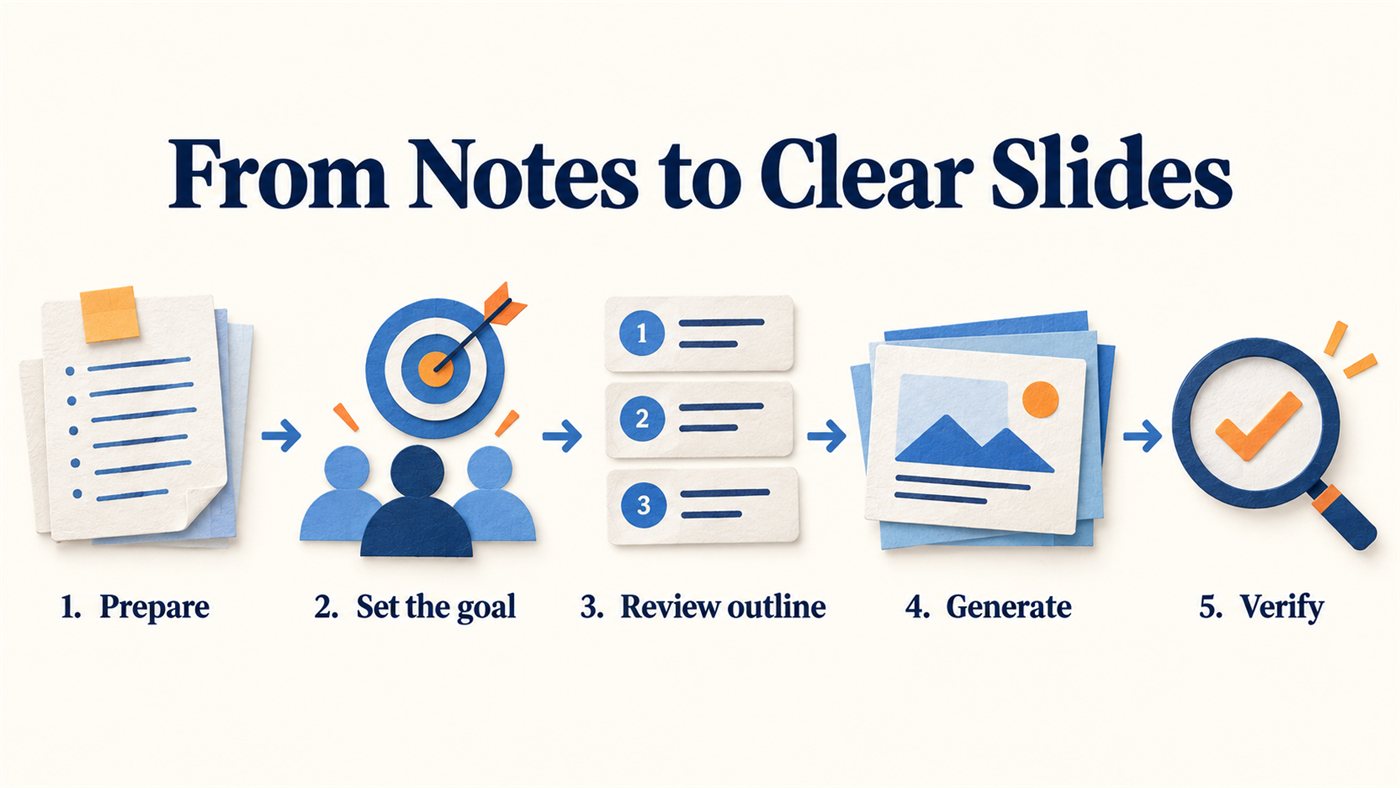
Prepare the source, define the goal, review the outline, generate slides, and verify the result. Conceptual workflow illustration.
Prepare Your Meeting Notes for AI
You don’t need beautifully written notes. You need notes that make their meaning clear.
Group your material under these labels:
- Context: Why did the meeting happen?
- Decisions: What was actually agreed?
- Evidence: Which figures or observations matter?
- Actions: Who will do what, and by when?
- Open questions: What still needs an answer?
Keep uncertain information visibly uncertain.
“Friday launch?” should become “Launch date under discussion; Friday proposed.” It should not become “We launch Friday.”
Before moving meeting notes to presentation software, remove unrelated chatter and information you’re not permitted to share with the tool.
Add Your Meeting Notes to PPT Maker
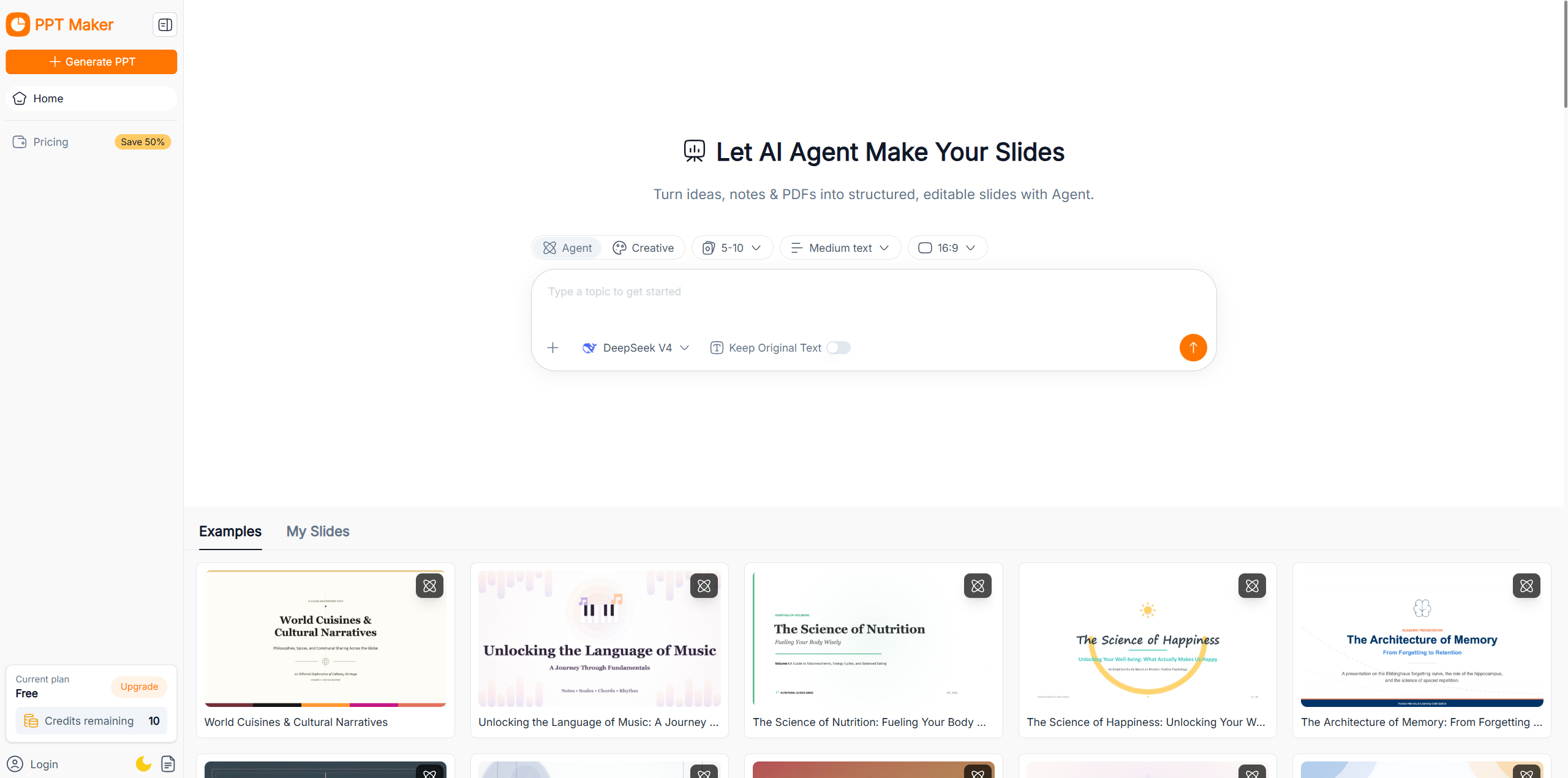
Paste your cleaned notes into PPT Maker, or use an input option available in your account.
According to its website, PPT Maker supports text and several other source types. Its Agent mode emphasizes structure and narrative, while Creative emphasizes visual expression.
For a decision-focused meeting recap, Agent is a sensible starting point.
Keep your original notes nearby. Throughout the meeting notes to presentation process, they remain your reference for checking names, numbers, and commitments.
Define Your Audience, Presentation Goal, and Slide Count
Before generating anything, finish this sentence:
After seeing this presentation, my audience should understand _ and be able to _.
For example:
After seeing this presentation, leadership should understand why expansion is delayed and be able to decide whether additional staffing needs review.
Then tell the AI your audience, purpose, approximate speaking time, and preferred slide count.
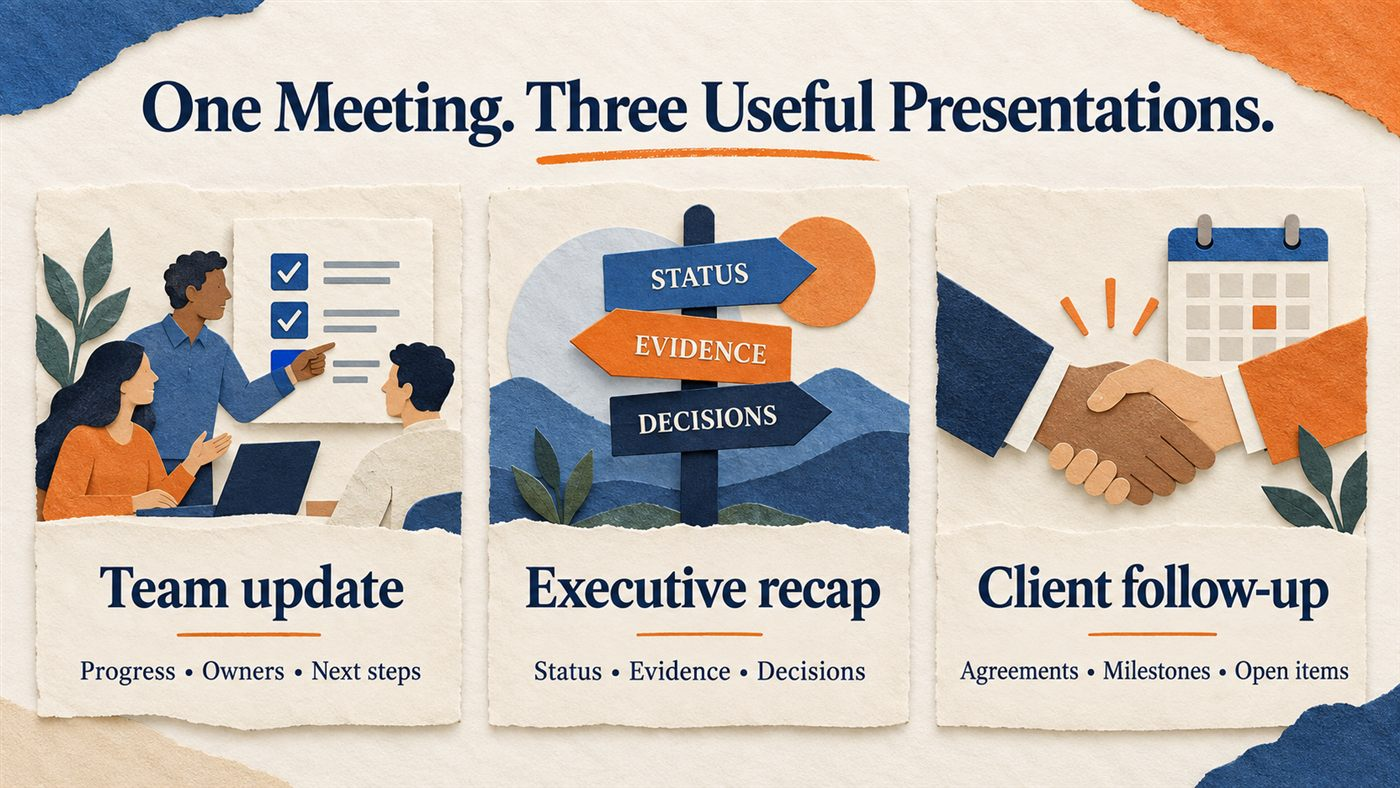
This context makes turning meeting notes into a presentation more focused. A client update and an internal project handoff may use the same notes, but they need different explanations.
Review the Outline Before Generating Your Slides
PPT Maker describes an outline review step before slide generation. Use it to catch structural problems early.
Read only the proposed slide titles.
Can someone understand the main story from those titles? Does the first slide explain why the update matters? Does the final slide make the next step obvious?
When converting meeting notes to slides, replace vague titles such as “Discussion” with informative ones such as “Expansion Depends on Staffing Confirmation.”
Keep the language accurate. A stronger headline should clarify the evidence, not exaggerate it.
Generate, Refine, and Export Your Presentation
Generate the deck, then give each slide a specific review.
Ask:
- Is its main point obvious?
- Does every statement match the notes?
- Can I comfortably read it at presentation size?
- Does it help the audience understand or act?
PPT Maker describes prompt-based single-slide refinement. Try:
Simplify this slide to three actions. Keep each owner and deadline. Remove repeated background information.
Its website lists PPTX and PDF export options, with availability depending on mode or plan. Check your account’s options, then open the exported file before sharing.
How to Structure Meeting Notes into a Clear Presentation
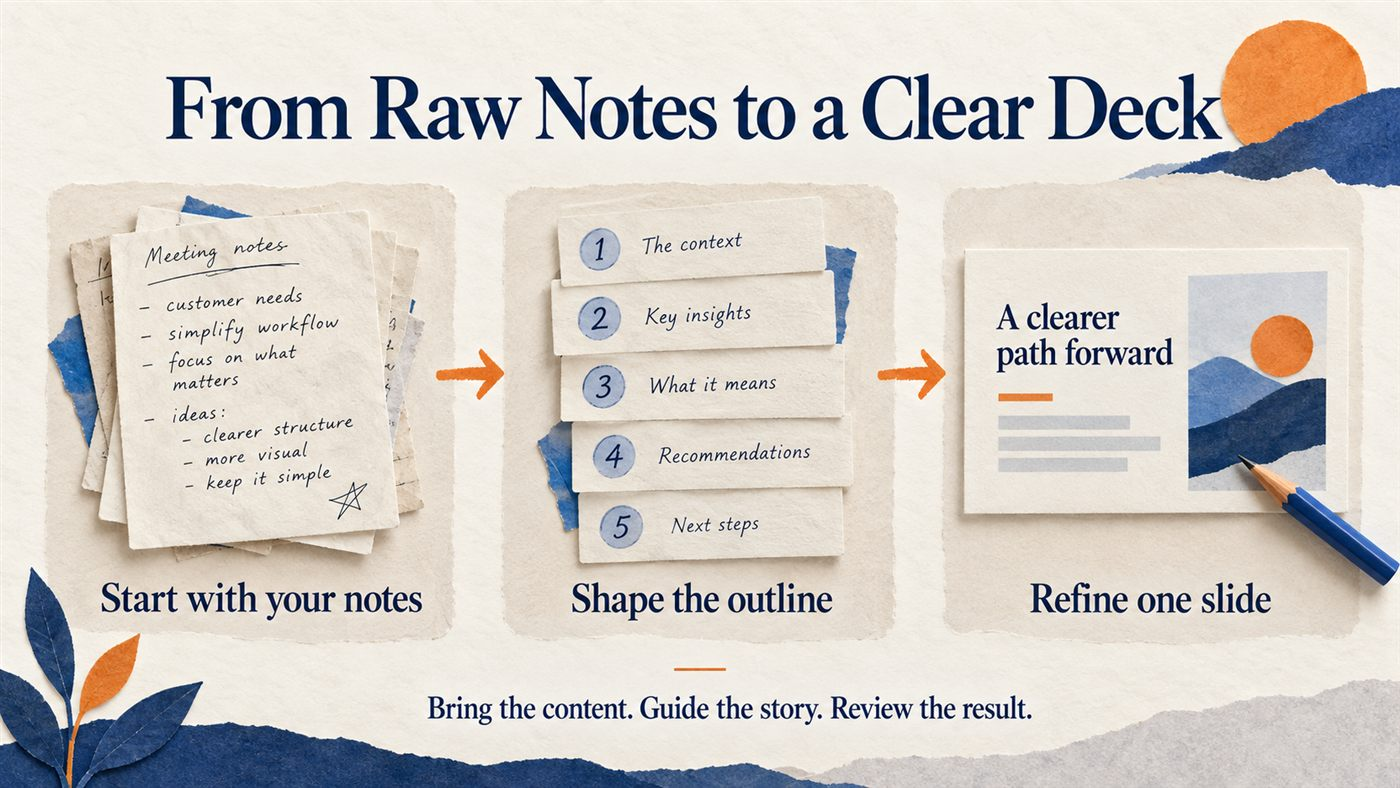
The most useful meeting notes to presentation structure answers the questions your audience is already asking: What happened? Why does it matter? What happens next?
You can usually build around those questions without recreating the entire meeting.
Start with the Meeting Purpose and Key Outcomes
Help your reader get oriented immediately.
Instead of opening with “Weekly Operations Meeting,” try:
Pilot Expansion Is Waiting on Support Coverage
Then add one sentence explaining the context.
If your audience missed the meeting, they should still understand the update. If they attended, they should recognize the outcome.
A clear opening makes your meeting notes to presentation deck useful even when it gets forwarded without you there to explain it.
Turn Key Decisions and Supporting Evidence into Slides
Put the decision close to the evidence that supports it.
For example:
Decision: Update onboarding instructions before expanding the pilot. Evidence: Support recorded 18 setup-related tickets last week, including 11 about verification.
Keep important qualifications. Those figures do not prove that unclear instructions caused the tickets.
When turning meeting notes into slides, preserve the difference between what the team observed and what it believes might explain the observation.
That distinction builds credibility.
Highlight Action Items, Owners, and Deadlines
Your action slide should save people a follow-up message.
| Next step | Owner | Due |
|---|---|---|
| Confirm support coverage | Alex | Thursday |
| Update onboarding guide | Priya | Friday |
| Review pilot readiness | Morgan | Friday |
If an owner or deadline is missing, label it as unassigned or pending.
This is where a meeting notes to presentation workflow becomes especially helpful: readers can see their responsibilities without hunting through paragraphs of discussion.
Keep Open Questions Separate from Confirmed Decisions
Uncertainty deserves a clear place in the deck.
Use an “Open Questions” section for items such as:
- Is staffing sufficient for expansion?
- Does the proposed launch date still work?
- Is additional budget required?
Include a next review date or responsible person when your notes provide one.
Converting meeting notes to presentation slides should make unresolved issues easier to manage. Hiding them only transfers the confusion to the next meeting.
Meeting Notes to Presentation Example: A Project Update
Let’s make the process concrete.
The following fictional example shows how you can turn rough notes into a short update without inventing missing details.
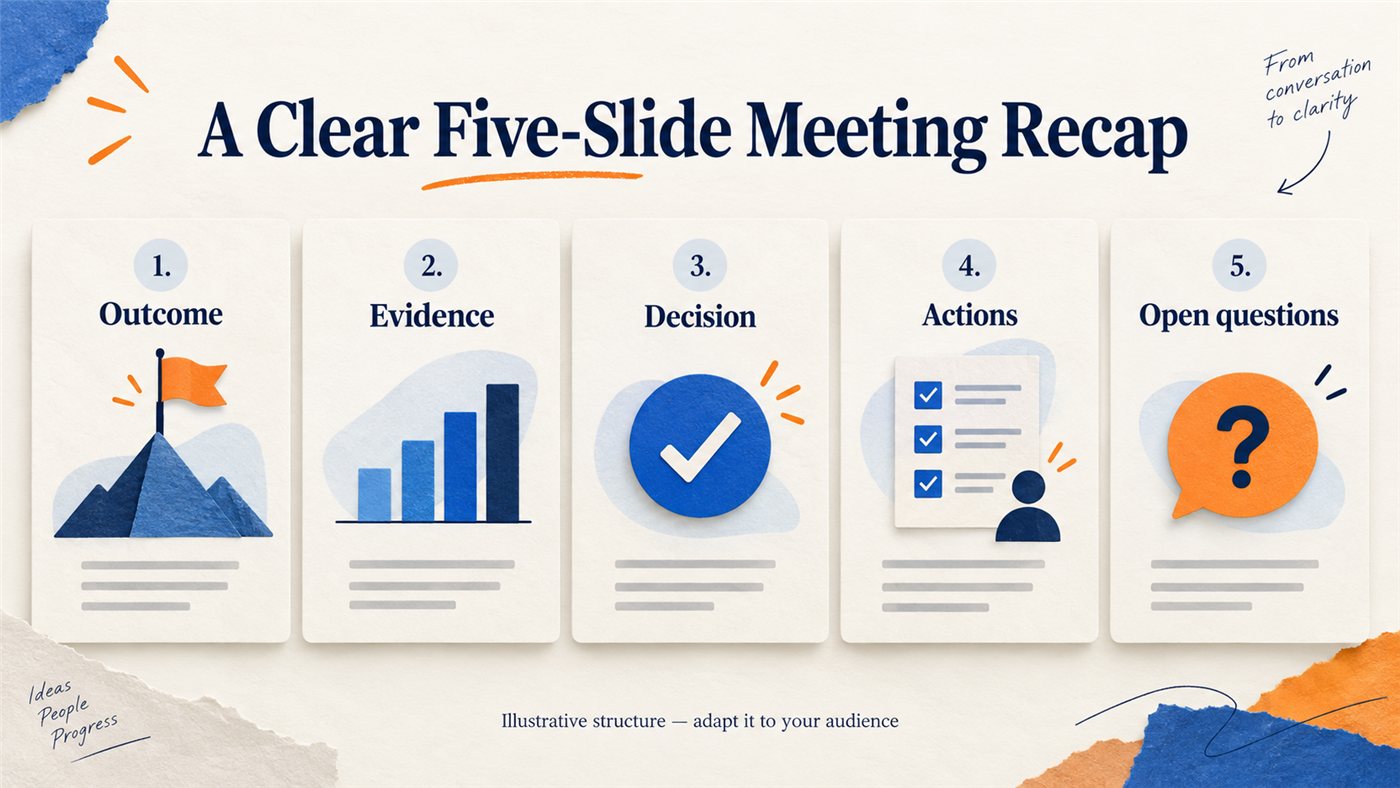
A flexible recap framework: outcome, evidence, decision, actions, and open questions. The example below adapts these elements to a project update.
Before: Raw Meeting Notes with Scattered Updates
Imagine your notes say:
Tuesday onboarding review. Support: 18 setup tickets last week, 11 verification-related. Priya suggests clearer screenshots. Team agreed guide needs revision before pilot expansion. Alex checking extra support coverage Thursday. Priya guide update Friday. Morgan readiness review Friday. Expansion date undecided. No extra budget approved.
You could paste this into a tool immediately. But first, identify the central message:
The team will update onboarding guidance and confirm support readiness before deciding when to expand.
That sentence gives your meeting notes to presentation draft a direction.
After: A Five-Slide Presentation Outline
Here is a possible structure:
| Slide | Headline | What the audience learns |
|---|---|---|
| 1 | Pilot Expansion Awaits Readiness Checks | Timing remains undecided. |
| 2 | Verification Appeared in 11 of 18 Setup Tickets | The team has a specific issue to investigate. |
| 3 | The Guide Will Be Revised Before Expansion | Priya owns Friday’s update; clearer screenshots are proposed. |
| 4 | Support Coverage Needs Confirmation | Alex will check coverage by Thursday. |
| 5 | Friday’s Review Will Reassess Readiness | Morgan leads the review; no extra budget is approved. |
This meeting notes to presentation example gives a stakeholder the outcome, evidence, responsibilities, and remaining uncertainty.
It also creates a useful basis for discussion. Someone can ask about staffing or the guide update without first decoding the original notes.
How to Improve an AI-Generated Slide
Suppose the generated deck includes:
Better screenshots will solve verification problems and allow expansion on Monday.
The sentence sounds confident. Unfortunately, the notes support neither promise.
Correct it with:
Revise this slide to match the source. Clearer screenshots are proposed, their impact is unverified, and the expansion date is undecided. Preserve Priya’s Friday deadline.
When reviewing meeting notes to presentation output, pay particular attention to polished sentences. Fluency can make an unsupported claim surprisingly easy to miss.
AI Prompts for Converting Meeting Notes to Presentation Slides
You shouldn’t have to become a prompt engineer to make a useful recap.
These templates give your AI presentation maker the context it needs. Replace the brackets, paste your notes, and review the result.
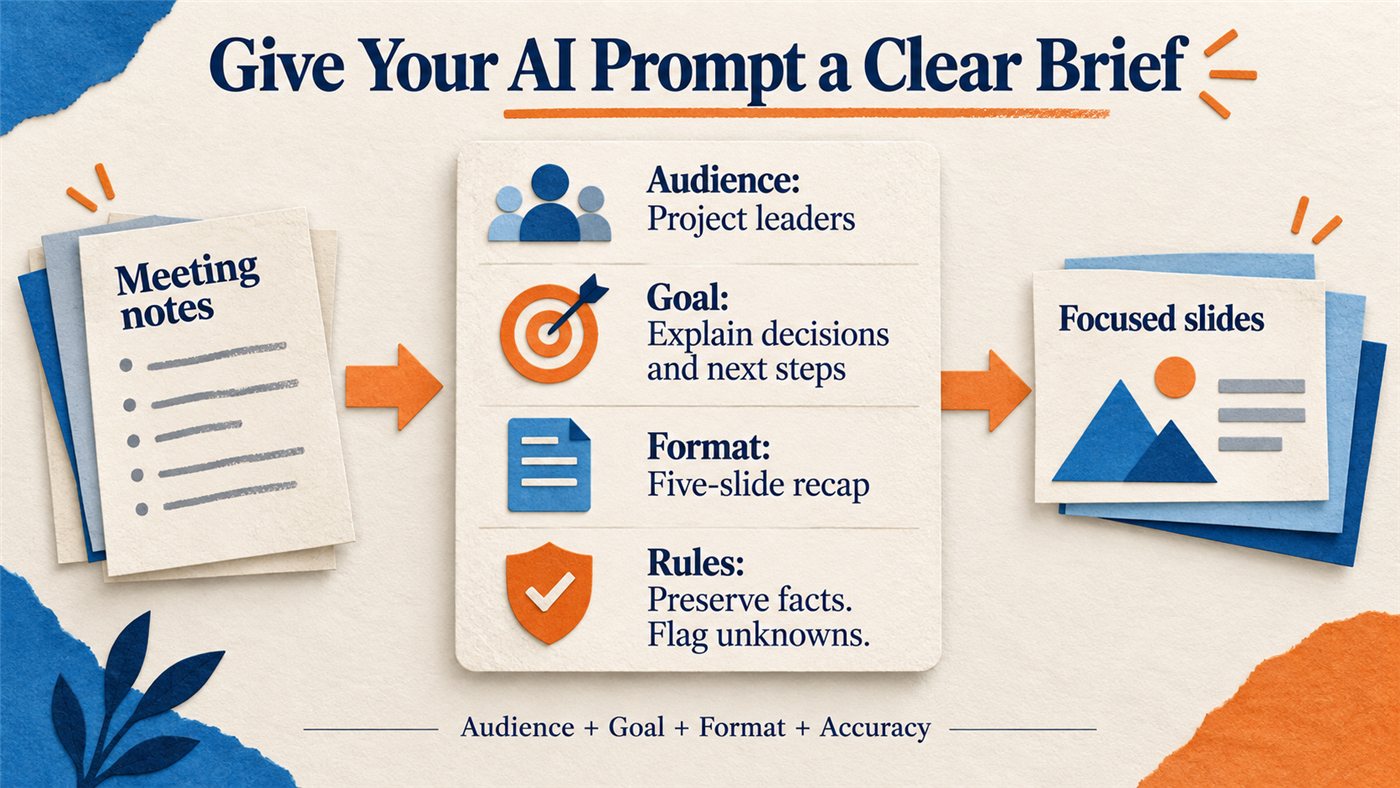
Give your AI a clear brief: identify the audience, explain the goal, choose a format, and require it to preserve facts and flag unknowns.
A Prompt for a Concise Meeting Recap
Convert these meeting notes to presentation slides for [audience]. Create a five-slide recap covering the main outcome, supporting facts, decisions, actions, and open questions. Preserve names, figures, owners, and deadlines. Distinguish proposals from approvals. Do not invent missing details. List anything I need to confirm separately.
A Prompt for an Executive Update Presentation
Turn these meeting notes into a four-slide presentation for [leadership audience]. Lead with the main outcome or decision required. Include only business implications supported by the notes, major risks, and next steps. Keep background brief. Do not infer financial impact or approval. Make unresolved issues explicit.
A Prompt for a Client Follow-Up Presentation
Convert these approved meeting notes to presentation slides for our client. Explain progress, agreed decisions, responsibilities, and upcoming milestones in clear, friendly language. Separate commitments from ideas under discussion. Use only the supplied client-facing material. Flag missing owners or dates for review.
Common Mistakes When Converting Meeting Notes to Presentation Slides
You can avoid most disappointing results by checking four things: relevance, accuracy, readability, and the final file.
Including Every Discussion Point Instead of Prioritizing Outcomes
Your audience probably doesn’t need the full journey through the meeting.
For each slide, ask:
What would the reader lose if I removed this?
If the answer is “a detail that changes nothing,” move it to supporting material.
A focused meeting notes to presentation deck respects the audience’s time while preserving the information they need.
Letting AI Invent Missing Facts or Commitments
Watch for small changes with large implications:
- “Suggested” becomes “approved.”
- “May improve” becomes “will improve.”
- “Check availability” becomes “confirmed.”
- An absent deadline becomes a specific date.
When converting meeting notes to PowerPoint or another presentation format, verify these details against the source.
An attractive deck should never require you to explain later that the deadline was the computer’s idea.
Overloading Slides with Text
A crowded slide makes the audience choose between listening and reading.
Give each slide one main purpose. Use a table for responsibilities, a sequence for stages, and short supporting statements for a decision.
When turning notes to PPT, resist copying full paragraphs onto the canvas. If everything needs to remain available, provide a supporting document alongside the deck.
Skipping the Final Accuracy and Layout Review
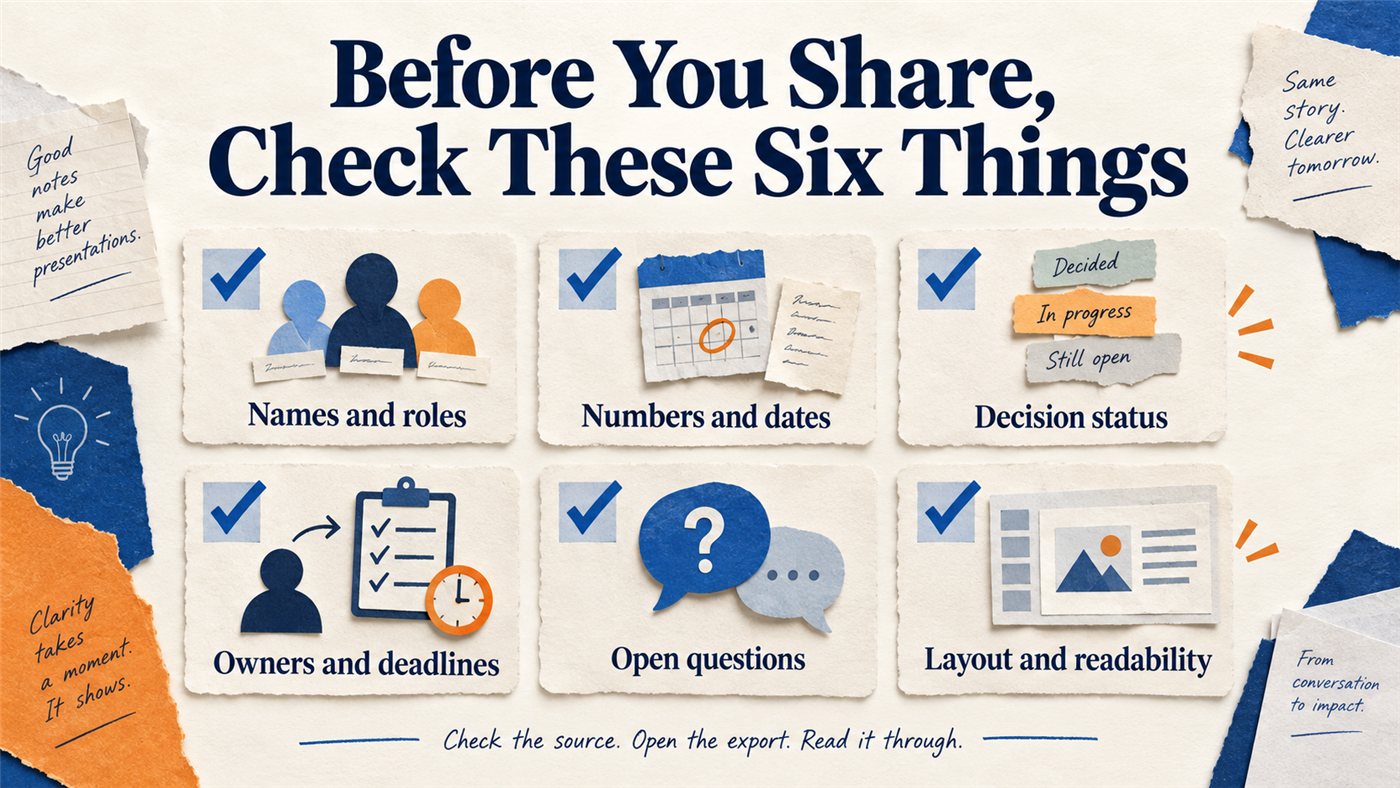
Before sharing, compare the slides with your source notes and inspect the exported file using this six-point checklist.
Before sharing your meeting notes to presentation output, check:
- Names and roles.
- Numbers, units, and dates.
- Decision status.
- Owners and deadlines.
- Unresolved questions.
- Text clipping and readability.
Open the export in the application you’ll actually use. Then read the slide titles aloud.
If the story feels confusing without the body text, revisit the sequence before spending more time on decoration.
FAQs About Converting Meeting Notes to Presentation Slides
Can AI Turn Meeting Notes into a PowerPoint Presentation?
Yes. AI presentation tools can organize notes into slide content, and some offer PowerPoint export. PPT Maker lists PPTX support, depending on mode or plan. Confirm availability in your account and inspect the exported file.
How Should You Format Meeting Notes Before Creating Slides?
Use sections for context, decisions, evidence, actions, and open questions. Keep names and figures intact, and label uncertainty. You don’t need perfect prose to convert meeting notes to presentation slides successfully.
How Many Slides Should a Meeting Recap Include?
Four to six slides is a useful starting point for a brief recap. Adjust for the audience and complexity. A short meeting with one decision may need fewer; a detailed handoff may need more.
Can You Edit Slides After Converting Meeting Notes to a Presentation?
PPT Maker describes individual slide refinement through prompts. Check the controls available in your chosen workflow. If you need to continue editing in PowerPoint, confirm export availability and review the resulting file’s editability.
Can You Convert Meeting Notes to Presentation Slides for Free?
PPT Maker says it offers free credits to explore its workflow. Generation and certain features consume credits, and additional usage may require payment. Check current allowances and export options before starting.
The next time someone asks for “a few slides,” start with the audience’s questions. Pull out the outcome, preserve the evidence, and make the next steps easy to find.
Take one set of notes and create your first draft with PPT Maker. Use the recap prompt above, review the outline, and check the result against your source.
Your goal is a presentation someone can understand—and act on—even if they never attended the meeting.