
The report is ready. The presentation is due tomorrow. You have the research, the numbers, and a clear recommendation, but turning everything into ten useful slides still feels like a separate project.
Copying paragraphs into a template rarely solves it. The slides become crowded, the opening takes too long, and the most important point ends up buried halfway through the deck.
An AI presentation maker can help you move past that first draft. Choosing one, however, means looking at the work that follows generation: checking the content, responding to feedback, and delivering something another person can use.
That is where the PPT Maker vs Gamma comparison becomes practical. Both support creating presentations from existing material, shaping the structure, and revising slides. PPT Maker offers an outline-review workflow with structured and visually focused creation options, while Gamma supports flexible browser-based creation and editing. The better fit depends on your source document, your editing habits, and where the finished presentation needs to go.
Start with Where the Presentation Will End Up
A browser presentation and a client handoff have different needs
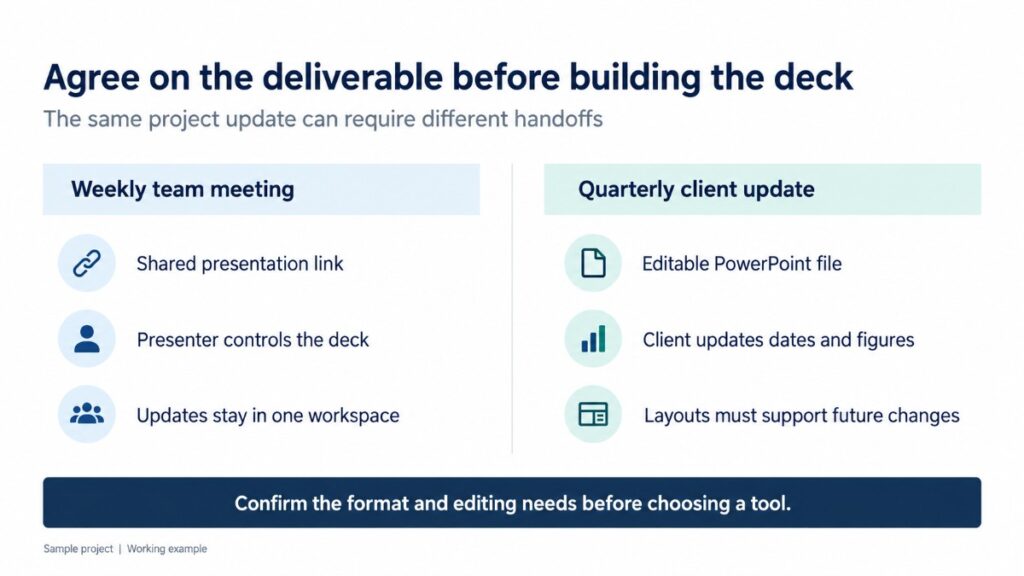
Imagine preparing a project update for an internal meeting. Your colleagues open a link, follow the presentation, and return to it afterward. In that situation, the browser experience matters throughout the workflow.
Now imagine delivering the same presentation to a client who asks for a PowerPoint file their team can update every quarter.
Suddenly, the requirements change. A heading must accept longer text. A table needs new figures. Someone who has never used your presentation tool should be able to make those changes without reconstructing the slide.
Before comparing designs, ask what happens after delivery. Will people only view the presentation, or will they maintain it? Does the file need to fit an existing company template? Will the presenter have dependable internet access?
Those answers give your document-to-slides workflow a useful direction before you upload anything.
What this means for PPT Maker vs Gamma
Gamma is worth considering when you expect to keep developing and presenting the material in its browser environment. Its flexible slide layouts can accommodate different combinations of text, images, and media.
PPT Maker offers a workflow that includes reviewing an outline, choosing a creation mode, and refining individual pages. That makes it a relevant option for users who want to organize existing material before producing the visual draft.
Both support PowerPoint export. If a PPTX file is your final deliverable, include an export check in the trial for either tool. Being able to download a file tells you less than opening it and making the changes your recipient will need.
Prepare the Document Before Asking AI to Build Slides
Tell the tool what the audience needs
A report and a presentation organize information differently.
A report may explain the background before arriving at a recommendation. In a short management meeting, the audience might need the recommendation immediately, followed by the evidence and the decision required.
Simply asking an AI presentation maker to “turn this document into slides” leaves those priorities unclear.
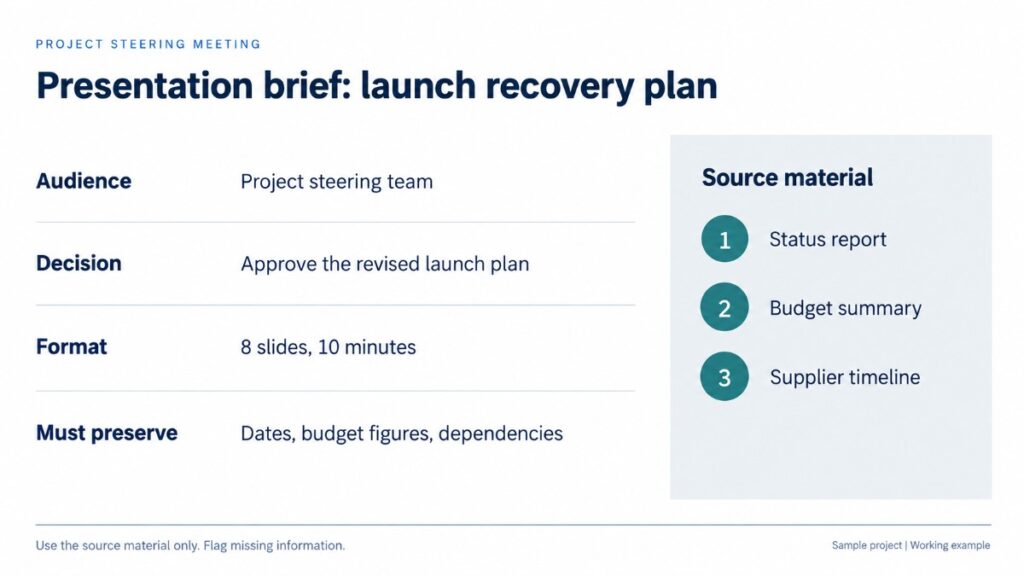
A more useful brief would be:
Create eight slides for a project steering meeting. Explain the delivery delay, its effect on the launch date, and the decision needed this week. Preserve the dates and budget figures. Keep technical background brief and flag missing information instead of inventing it.
This gives the software a specific communication task. You are defining what the presentation must accomplish, which helps guide what to include and what to leave out.
For a classroom presentation, the brief might instead explain the students’ existing knowledge, the lesson objective, and the concept that needs an example.
Choose an input that reflects your real work
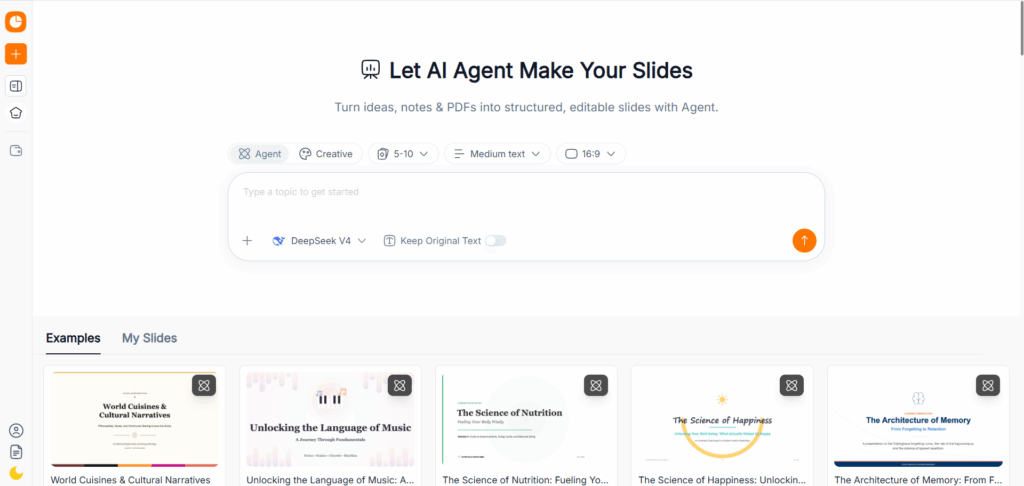
PPT Maker accepts topics, pasted text, PDFs, articles, and videos. Agent emphasizes narrative and structure, while Creative focuses on a more visual treatment. Gamma also works with existing material through pasted content, document imports, and URLs, with tools for developing the brief and outline.
The starting options overlap enough that a simple feature checklist will only take you so far.
Use a representative document to compare them. If your weekly work involves dense reports, try a report with a table, several sections, and an important qualification. If you usually build training decks, use material that contains both instructions and examples.
For a PDF-to-presentation workflow, inspect what was extracted before judging the design. A missing table heading or detached footnote can change the meaning even when the resulting slide looks convincing.
Review the Outline Before Investing in Design
Make the argument visible early
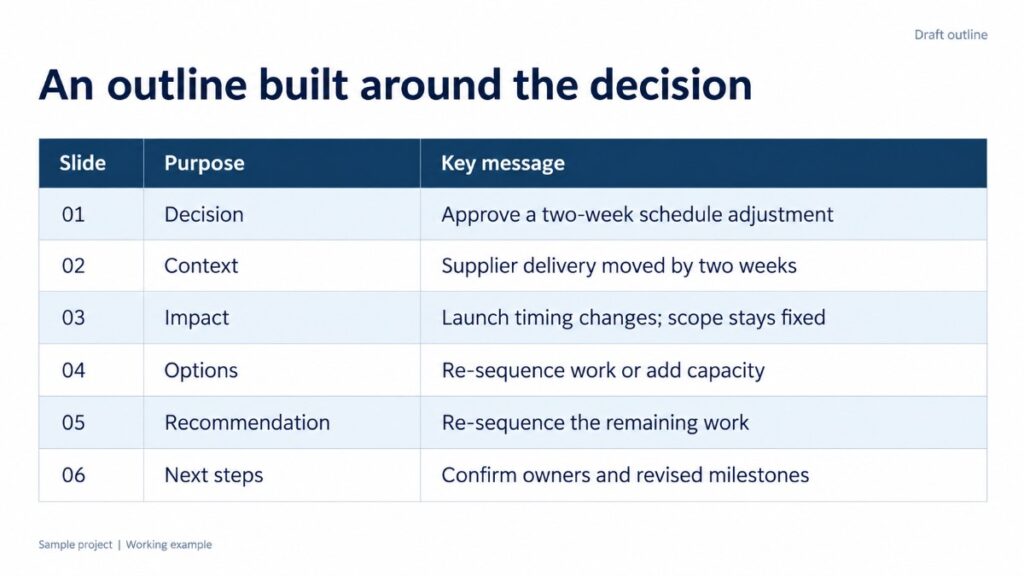
A generated outline often looks reasonable because its headings are familiar: introduction, background, findings, recommendations, conclusion.
But familiarity does not guarantee that the order suits the meeting.
Suppose you need approval for an additional supplier. Spending the opening slides on company background delays the discussion of capacity, cost, and the deadline for a decision.
Read the proposed slide titles as a short story. Can someone understand the situation and the requested action from those titles alone? If the central point appears too late, move it forward while the presentation is still easy to restructure.
Both tools support planning and revision, so outline review should be part of your evaluation rather than treated as a unique advantage for either product.
In a PPT Maker vs Gamma trial, compare how much work it takes to arrive at a sequence you would confidently present.
Protect the details that change the conclusion
Shortening content can remove more than words.
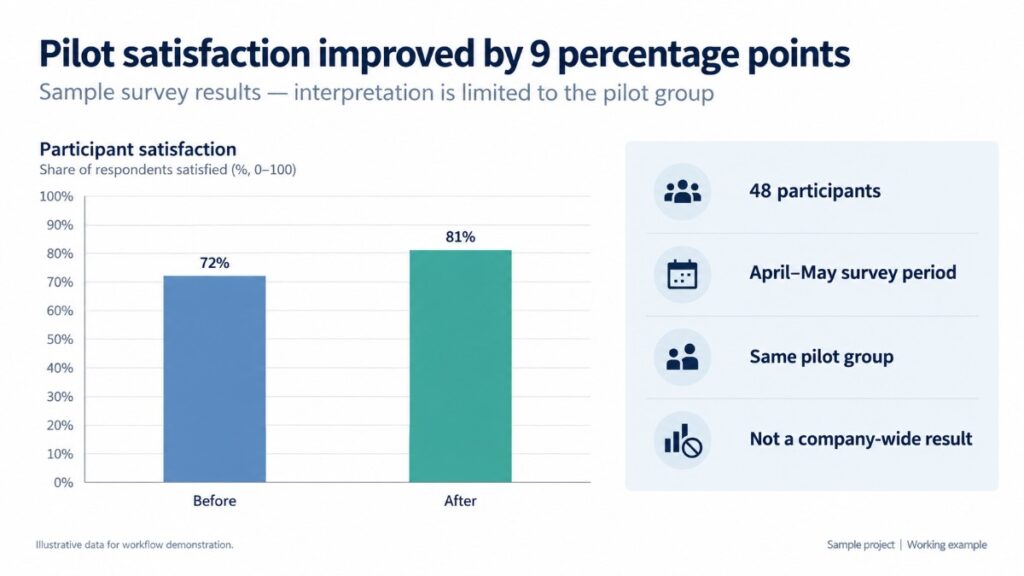
“Customer satisfaction increased” carries a different meaning if the survey involved only a small pilot group. A projected saving needs a timeframe. A launch date may depend on an approval that has not happened yet.
Keep those conditions attached to the relevant claim.
One practical approach is to mark essential figures, dates, and qualifications before generation. During outline review, check that they still have a place in the presentation.
For teaching materials, pay similar attention to prerequisites. A concise deck can become difficult to teach if it introduces an advanced concept before explaining the idea it depends on.
Sometimes a stronger outline needs fewer slides. In other cases, adding one explanatory slide makes the entire presentation easier to follow.
Judge the Editing Experience by a Real Revision
Try the change you usually receive
The first review rarely ends with “start again.”
More often, a colleague wants a shorter opening, a clearer comparison, or less text on a particular slide. These small requests reveal how comfortable an AI presentation tool will be in everyday use.
PPT Maker supports prompt-based changes to individual pages. Gamma also supports targeted AI editing, including selected slides or elements, as well as broader revisions.
Give each tool a bounded request:
Shorten this slide to three points, preserve the figures, and keep the recommendation unchanged.
Then inspect the result. Did the wording improve? Was an important condition removed? Did the slide become easier to read without changing its meaning?
Also consider whether the task would be faster by hand. A tool that supports AI revision still needs to make ordinary manual corrections comfortable.
Match the visual treatment to the message
A process diagram can explain an approval sequence more clearly than a paragraph. An unrelated image beside a budget table may add little.
Choose visuals according to what the audience needs to understand.
An operations update may benefit from clear labels, restrained colors, and a readable table. A creative proposal may need a more expressive visual direction to communicate the idea.
Instead of repeatedly asking for a slide to look “more professional,” describe the communication problem: “Show the three approval stages as a sequence, keeping the owner and deadline visible for each stage.”
That request gives the revision a purpose.
Once the content is accurate, avoid endless regeneration for minor aesthetic changes. Each new version creates more review work, and eventually the deck needs to become stable enough to rehearse.
Test PowerPoint Export Before the Final Deadline
Check what “editable” means for your recipient
Editable PPTX export deserves a closer look than a download button.
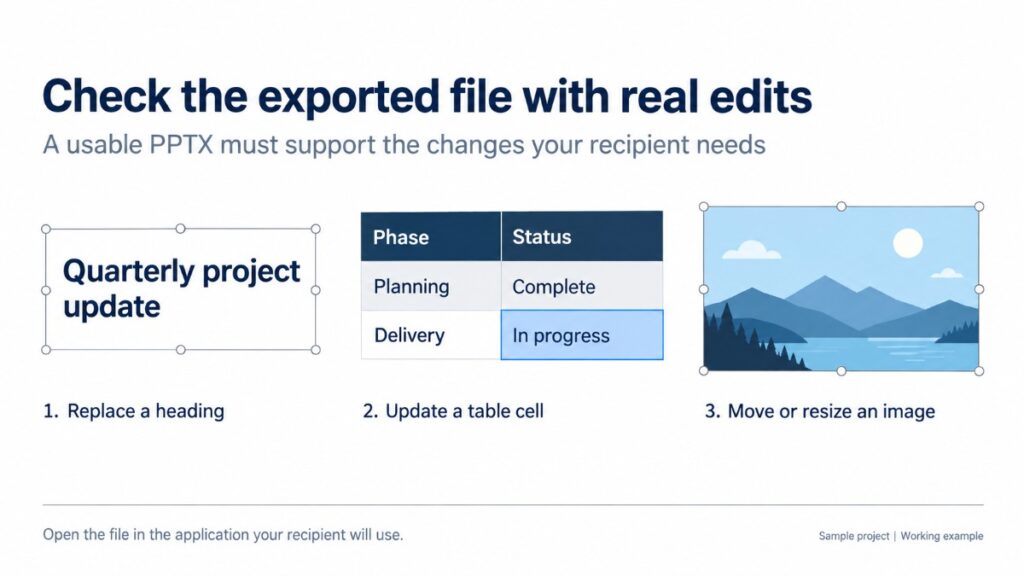
Someone may only need to replace a heading. Another person may expect to update chart data, add rows to a table, or apply a corporate layout across the deck.
Open the exported presentation and perform those actions. Replace a title with a longer one. Update a value. Move an image. Check whether a chart behaves as a chart or as a fixed visual.
PPT Maker lists PPTX among its export formats, with options depending on the creation mode or plan. Test the output from the mode you intend to use.
Gamma also exports to PowerPoint and supports editable table export. Some visual treatments can still appear differently outside its editor. The useful question is whether your particular slides remain readable and practical to revise in the destination application.
Export a difficult slide early
You do not need to finish twenty slides before testing the handoff.
Choose a demanding example from the draft. For a consultant, that might be a comparison table. A teacher may care most about a labeled diagram. A sales team may need the pricing page to remain easy to update.
Export the draft and open it where the final presentation will be used. If the recipient works in Google Slides after receiving a PPTX, include that conversion in your check.
Look at both appearance and editing behavior. A slide can display correctly yet be awkward to maintain.
If you discover a problem early, you can simplify the layout, change the visual treatment, or adjust the delivery format before the same issue spreads across the deck.
This step makes a document-to-PowerPoint workflow much easier to trust under deadline pressure.
Compare Free Plans Through a Complete Assignment
Leave room for revisions
A free AI presentation maker is most useful when its allowance lets you complete the whole task: import material, generate a draft, revise it, and inspect the output.
PPT Maker’s free plan includes 50 monthly credits and up to ten slides per presentation. Ten credits are available before signing in, with the remaining forty claimable after login. Unused credits do not roll over.
Gamma’s free plan lists document import, export, and generation of up to ten slides per prompt. PDF and PPTX exports from a free workspace include Gamma branding.
Plan details can change, so check the current conditions before starting a time-sensitive project.
Keep your trial small enough to allow a second attempt. A five-slide assignment with one challenging table can teach you more than a large first generation that consumes the available allowance.
Count the work after the first draft
Credit totals are not directly comparable across products because the charging rules and tasks differ.
For recurring work, measure the time required to reach a presentation you would actually send.
Include checking facts, correcting the narrative, replacing unsuitable visuals, applying branding, and reviewing the final file. If another person must maintain the deck, include their experience too.
A fast first draft is valuable, but it represents only one part of the job. The practical benefit comes from reducing the total effort between source material and delivery.
That is especially important for weekly presentations. Small editing frustrations become significant when you encounter them every Monday.
Choose According to the Work You Repeat
When to consider PPT Maker
PPT Maker belongs on your shortlist if you want to start with existing material, review the structure, and choose between a more structured or visual creation approach.
Try it with a short document you already understand. Familiar material makes omissions easier to notice and helps you judge whether the workflow reduces your normal preparation effort.
For teachers, trainers, and professionals working from notes or reports, that is a useful starting point for evaluating a Gamma alternative.
When to consider Gamma
Gamma is worth trying when browser-based creation and presentation suit how your team works. Its flexible layouts and AI editing options support continued development within the same environment.
It also remains relevant when file export is required. Evaluate the current output with your own content, particularly the elements your colleagues expect to update.
Neither tool needs to win every category. Your most frequent assignment should carry more weight than a feature you are unlikely to use.
Conclusion: Choose the Workflow That Gets You to a Usable Deck
The most useful PPT Maker vs Gamma comparison begins with the same source material and ends with the same delivery requirements.
Give both tools a clear brief. Review the outline, revise a difficult slide, and open the final output in the application your audience will use. Notice where you spend time correcting content and where the process feels straightforward.
Choose the workflow that helps you preserve meaning, handle feedback, and deliver a presentation someone can confidently use.
To try that process with PPT Maker, start with a document you have presented before. You already know its key points, so you can focus on whether the new workflow makes the job easier.