
You know the feeling. A meeting appears on your calendar, someone asks for “a few slides,” and suddenly you are staring at an empty PowerPoint file with no idea where to begin.
The information may already exist. It is scattered across meeting notes, emails, reports, spreadsheets, or a half-finished document. The real difficulty is turning that material into a clear story, deciding what belongs on each slide, and making everything look professional. For people without design experience, aligning text boxes and searching for suitable images can take longer than writing the presentation itself.
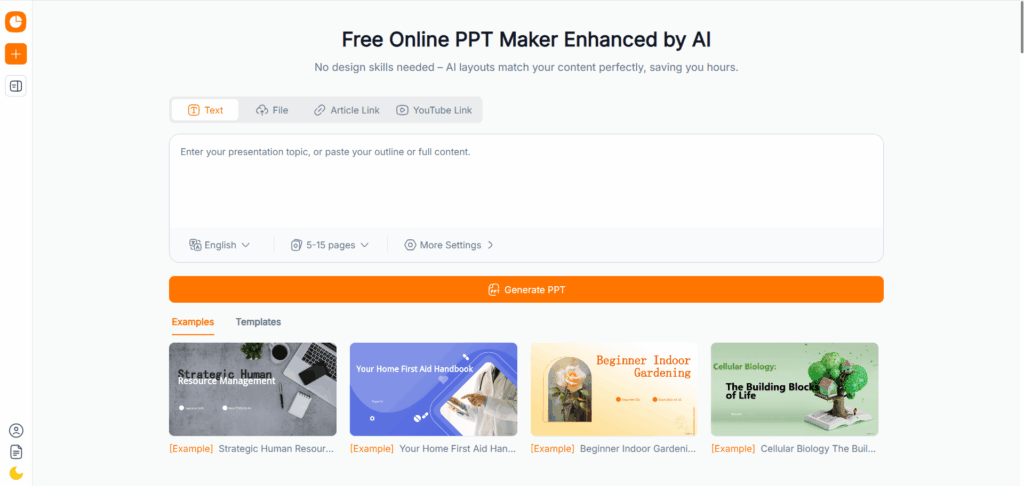
AI presentations offer a more practical starting point. Instead of building every slide manually, you can give an AI presentation maker a topic, rough notes, or an existing document. It can identify the main ideas, create an outline, draft slide content, and apply a visual structure.
That does not mean one prompt will produce a flawless deck. The best results come from using AI as part of a workflow rather than treating it as a one-click replacement for thinking. This guide explains that workflow, from messy source material to an editable PowerPoint you can confidently present.

What Are AI Presentations?
More Than Text Placed on a Template
AI presentations are slide decks created or improved with artificial intelligence. Depending on the tool, AI may help plan the narrative, summarize documents, write headlines, select layouts, suggest visuals, or generate a complete first draft.
Traditional presentation software begins with a blank slide or a template. You still need to decide what to say, how to organize it, and where every element should go. An AI PowerPoint maker starts one step earlier. It interprets your request and turns unstructured information into a proposed presentation.
For example, you could paste notes from a project meeting and ask for an eight-slide update for senior management. The AI might organize those notes into progress, results, risks, budget, decisions, and next steps. That structure is often more valuable than the visual styling because it removes the hardest part of starting.
An AI-generated presentation should still be considered a draft. Artificial intelligence can organize information quickly, but it does not automatically understand office politics, client expectations, internal history, or which number will matter most to your audience.
Where AI Saves the Most Time
Making slides involves several different kinds of work. There is thinking, writing, summarizing, designing, formatting, checking, and rehearsing. AI does not handle all of them equally well.
It is especially useful when you need to compress a long document, create a first outline, rewrite dense text, or generate several possible ways to organize a story. It can also remove repetitive design work by applying consistent fonts, colors, spacing, and layouts.
This changes the economics of presentation creation. Instead of spending three hours getting to a rough draft and another hour polishing it, you may reach a usable first version within minutes and spend the remaining time improving the message.
The benefit is not simply speed. AI presentations reduce the energy wasted on low-value formatting decisions, giving you more time to ask whether the deck is accurate, persuasive, and appropriate for the people who will see it.
Why Creating a Professional PowerPoint Is So Difficult
The Blank Slide Is Not the Real Problem
People often blame PowerPoint when a presentation takes too long. In reality, the blank slide is only where several unresolved questions become visible.
What does the audience already know? What decision should they make? Which details are essential? Does the story need evidence, examples, or a comparison? Should the recommendation appear at the beginning or after the analysis?
Without answers, even a beautiful template is not much help. You start writing a title, change the layout, move a chart, and then realize the presentation has no clear direction.
This is where an AI presentation generator can help. It gives you something concrete to react to. Rejecting or revising an outline is much easier than inventing one from nothing.
The First Draft Often Creates a Second Problem
AI can eliminate the blank page, but weak AI presentations introduce another frustration: cleanup.
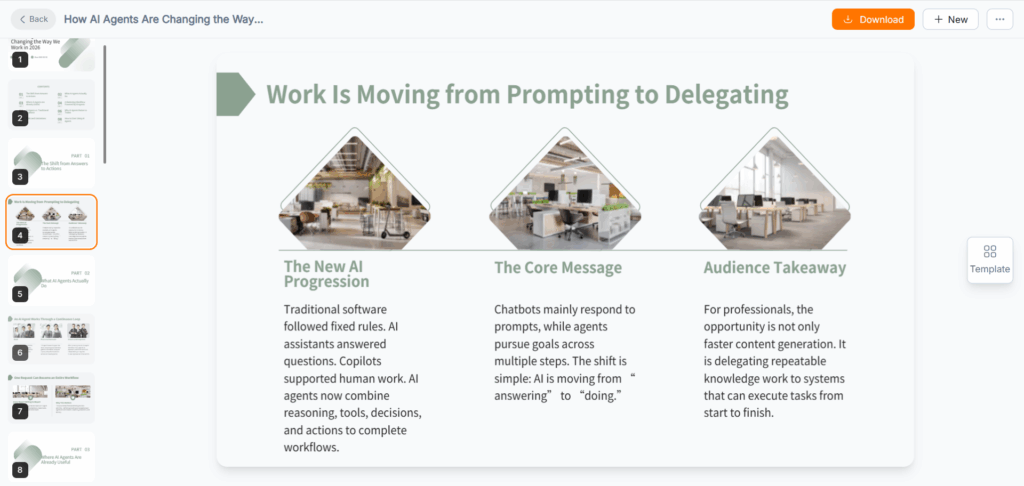
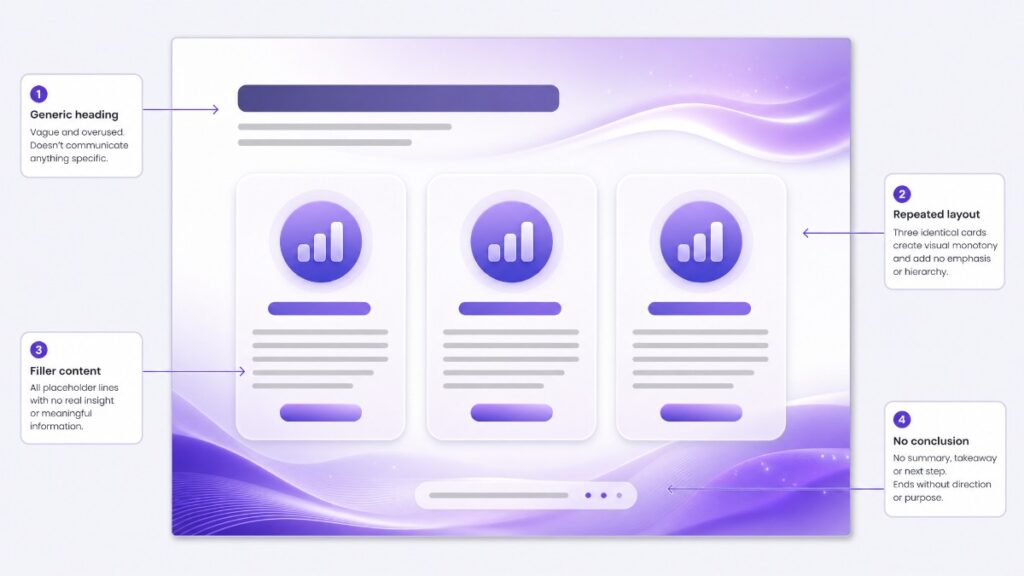
Many generated decks use the same layout repeatedly. Topic labels such as “Our Strategy” or “Market Overview” replace meaningful headlines. Paragraphs are divided into polished-looking cards that contain little substance. Decorative icons appear on every slide, while the actual takeaway remains unclear.
Editing can be difficult too. Some tools produce attractive web-based presentations but lose alignment, fonts, animations, or chart editability when exported to PPTX. Others enforce layouts so strongly that adding one sentence causes the design to fight back.
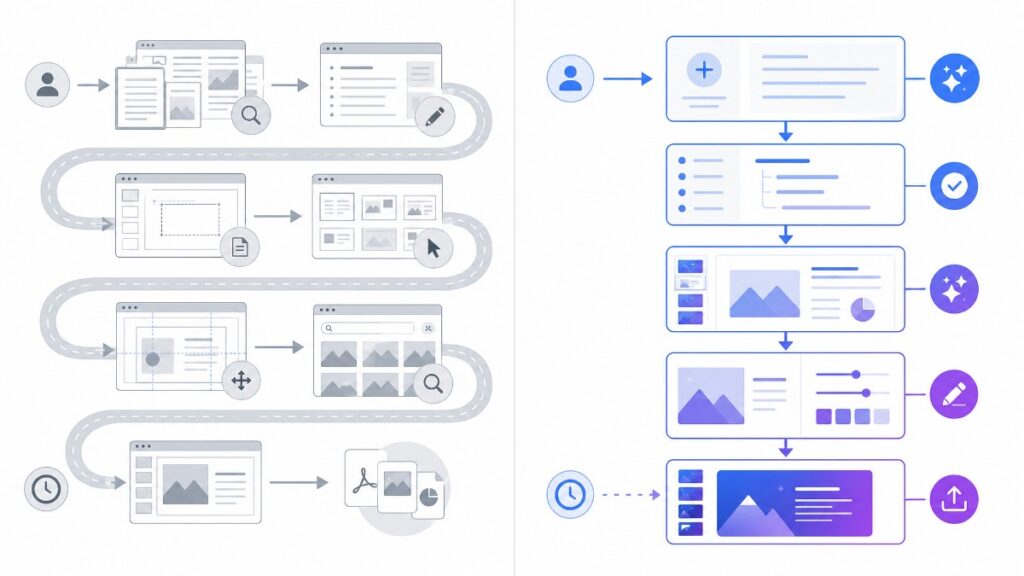
The practical goal is therefore not to generate the fastest deck. It is to minimize total time from raw material to presentation-ready output. A 30-second draft that requires two hours of repair is not an efficient workflow.
How to Create AI Presentations Without Design Skills
Step 1: Define the Job Before Opening the Tool
A vague request produces a vague presentation. Before using an AI PowerPoint generator, write down four things: the audience, the purpose, the desired outcome, and the delivery context.
Imagine you need a quarterly review. “Create a presentation about Q2 performance” provides almost no direction. A stronger brief would explain that the audience is the leadership team, the goal is to secure approval for additional marketing budget, and the deck must fit a ten-minute meeting.
Now the AI knows what to prioritize. Revenue trends matter, but so do the reasons behind them. Campaign performance needs to lead toward a recommendation. Operational detail that does not affect the decision can move to an appendix or disappear entirely.
This short brief acts as a filter throughout the workflow. Whenever a slide feels unnecessary, ask whether it helps the audience reach the intended decision.
Step 2: Start With Real Material
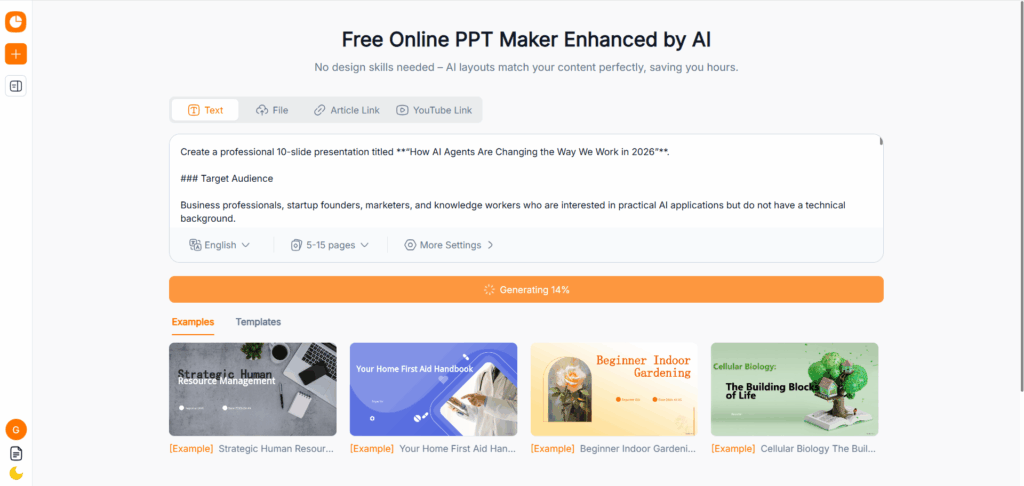
AI presentations become generic when the AI has nothing specific to work with. A one-line topic forces the system to invent context, which often results in obvious statements and filler copy.
Use the strongest source material available. That might be a Word document, PDF report, article, meeting transcript, research paper, or a page of rough notes. If you are preparing a sales presentation, include the prospect’s industry, pain points, current process, and expected business value. For an internal update, provide the actual metrics, milestones, risks, and unresolved questions.
Do not worry about making the source material beautiful. Messy but factual input is more useful than a polished yet empty prompt. Your AI presentation maker should help organize the information; it should not be expected to manufacture the substance.
Sensitive material requires extra care. Review your organization’s rules before uploading confidential financial information, customer data, unreleased plans, or employee records to any online AI tool.
Step 3: Generate the Outline Before the Slides
The outline is where the presentation succeeds or fails.
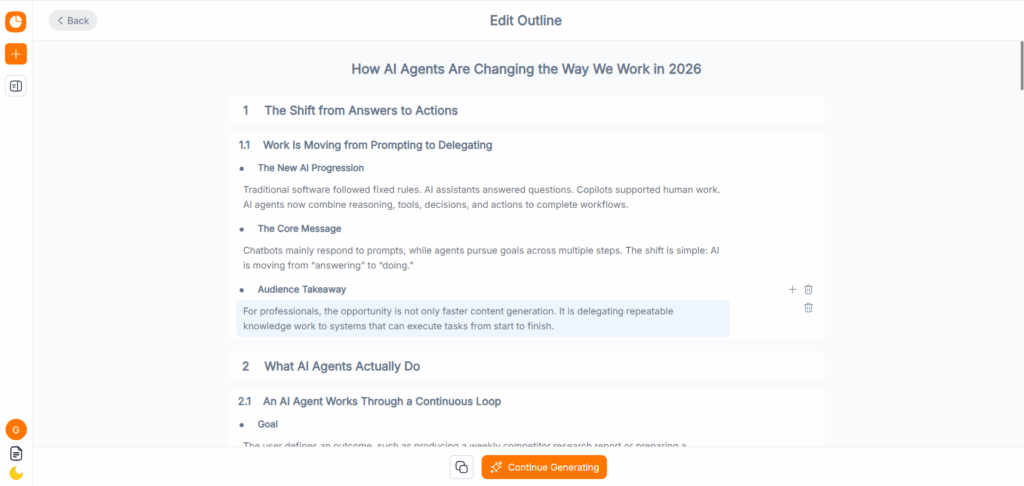
Generating designed slides immediately can make a weak structure look finished. Once the colors and images appear, people become reluctant to make major changes, even when the narrative is wrong. An outline-first workflow keeps revision inexpensive.
Ask for a slide-by-slide plan containing the purpose of each slide, its main takeaway, and the evidence required to support it. Review the sequence before generating visuals.
A strong business deck usually moves through a logical progression: context, problem, evidence, interpretation, recommendation, and action. Not every presentation needs that exact order, but every slide should prepare the audience for the next one.
Remove repeated ideas. Combine slides that make the same point. If the important recommendation does not appear until slide 14, consider moving it forward. AI presentations improve dramatically when the underlying story is fixed before design begins.
Step 4: Write Headlines That Make a Point
Weak slide titles name subjects. Strong slide titles communicate conclusions.
“Customer Retention” tells the audience what the slide is about. “Customer Retention Improved After Onboarding Changes” tells them what they should understand. The chart and supporting text can then explain why.
AI frequently defaults to topic-based headings because they are safe and reusable. Ask it to rewrite every title as a short, complete statement. Each headline should make sense even if someone reads only the slide titles from beginning to end.
This technique creates a hidden summary of the presentation. It also prevents the presenter from spending the first 20 seconds of every slide explaining why the audience is looking at it.
Step 5: Generate a Visual Draft
Once the outline and headlines are solid, let the AI presentation maker apply layouts and visual hierarchy.
Choose a style based on context, not personal taste. A board update may need restrained colors and clear charts. A creative proposal can support bolder imagery. Training materials require readability and repetition, while a conference presentation may work better with fewer words and stronger visual moments.
Do not judge the draft by the title slide alone. Look at the entire deck. Are the layouts varied for a reason, or randomly different? Does each visual clarify information? Can the most important number be understood within a few seconds?
Professional AI presentations do not need decoration on every page. White space is useful. A short statement may deserve an entire slide. Conversely, five separate cards should not be used when one comparison table would communicate the idea more clearly.
How to Improve an AI-Generated Presentation
Replace Generic Content With Evidence
AI-written text often sounds confident before it becomes meaningful. Phrases such as “drive innovation,” “unlock growth,” and “enhance efficiency” can fit almost any company. If a sentence could be pasted into a competitor’s presentation without changing anything, it probably needs revision.
Replace broad claims with facts, decisions, or examples. “Improve customer experience” becomes more credible when the slide explains which part of the experience is failing, how it will change, and what result is expected.
Check every statistic and quotation. AI presentation tools can summarize supplied material, but they may remove qualifications, confuse dates, or generate unsupported details. Return to the original source whenever accuracy matters.
The same principle applies to charts. A graph should have a clear takeaway, not merely display data. Use a headline or annotation to tell viewers what changed and why that change matters.
Remove the Recognizable AI Look
Many AI presentations share visual habits: gradients, rounded cards, generic illustrations, repeated icons, and identical multi-column layouts. None of these elements is automatically bad. Together, however, they can make a deck feel generated rather than designed.
A short cleanup pass makes a substantial difference. Reduce the color palette, remove unnecessary icons, and replace generic stock imagery with product screenshots, customer examples, diagrams, or relevant data. Check whether several slides use the same composition without a content-based reason.
Brand consistency matters more than visual novelty. Apply the correct logo, fonts, colors, image style, and tone of voice. If your organization has an approved template, use it as the design foundation instead of attempting to recreate the brand from memory.
The objective is not to hide the use of AI. It is to make sure the presentation reflects your organization and your judgment rather than the default style of the software.
Edit for Speaking, Not Reading
A document can carry detailed explanations. A live presentation cannot.
When audiences are reading a paragraph, they are no longer listening to the speaker. Reduce body text until each slide supports the conversation rather than competing with it. Detailed evidence can move into speaker notes or an appendix.
Read the deck aloud. Awkward transitions become obvious when spoken. You may discover that two slides repeat each other, a chart appears before it has context, or the final recommendation arrives without enough support.
AI presentations can also help during this stage. Ask the tool to shorten a slide, adjust the language for a non-technical audience, produce speaker notes, or create a second version for a different stakeholder group. These targeted edits are generally more reliable than regenerating the entire deck.
How the Leading AI Presentation Tools Fit Different Workflows
Choose the Tool Based on the Final Destination
Most AI presentation platforms promise similar outcomes, but their workflows differ.
PowerPoint with Copilot is attractive to teams already working inside Microsoft 365. The familiar editing environment reduces handoff problems, especially when colleagues need to revise the file later. Its value depends partly on licensing and the quality of the source material available within the Microsoft ecosystem.
Canva offers an enormous library of templates, images, and brand assets. It works well when visual exploration and manual customization are important. That creative freedom can also mean more decisions for users who want the software to handle design automatically.
Gamma is known for moving quickly from an outline or document to a polished, web-native presentation. Its editing experience suits fast drafts and link-based sharing. Teams that must deliver conventional PowerPoint files should carefully inspect exported layouts and editable elements.
Beautiful.ai takes a more controlled approach. Its smart layouts maintain alignment and consistency as content changes, which can be valuable for non-designers and larger teams. Those same guardrails may feel restrictive when a slide needs an unusual composition.
Pitch emphasizes collaborative deck creation and team workflows. It is a natural fit when several people contribute, review, and present from the same environment.
No single tool wins every category. When comparing AI presentation makers, test the task you perform most often. Upload a real document, create a typical deck, edit several slides, and export the result. Generation speed matters far less than content quality, editing flexibility, brand control, and a dependable final format.
How to Export AI Presentations Without Last-Minute Surprises
Test the Editable PowerPoint File Early
Do not wait until presentation day to discover that the exported PPTX behaves differently from the online version.
Run an export test near the beginning of your workflow. Open the file in PowerPoint and inspect fonts, spacing, charts, images, animations, and speaker notes. Try editing a headline and moving an object. A file can technically be “editable” while still being frustrating to revise.
Web-native tools and PowerPoint use different layout systems. Complex designs may shift during conversion, while charts sometimes arrive as flat images rather than editable data objects. Knowing these limitations early helps you choose simpler layouts or rebuild critical elements before the deadline.
Keep a PDF backup for reliable display. If you are presenting on another computer, verify that fonts and media work there too. Professional AI presentations are judged by what the audience sees, not by how quickly the first draft was generated.
Finish With a Human Review
The final review should cover more than spelling.
Confirm that names, dates, totals, and claims are accurate. Check whether every slide has a purpose. Make sure the visual hierarchy is clear from the back of a room, not only on your laptop. Verify that the conclusion answers the question introduced at the beginning.
Then rehearse. A polished deck cannot rescue a presentation that runs over time or lacks a clear ask. Practice the transitions, decide where to pause, and prepare for likely questions.
AI can accelerate production, but responsibility remains with the presenter. You decide what is true, what is relevant, and what the audience should do next.
A Better Way to Think About AI Presentations
The most useful AI presentation workflow is neither fully manual nor fully automatic.
Begin with a clear brief. Supply real information. Build and revise the outline before generating slides. Let AI handle repetitive structure and formatting, then apply human judgment to the message, evidence, brand, and delivery.
This approach solves the real problem faced by non-designers. You do not need to master every PowerPoint feature or spend an evening aligning shapes. At the same time, you are not forced to accept generic slides just because they appeared quickly.
Good AI presentations still require thought, but that thought is directed toward the audience instead of the toolbar. The software creates momentum; you provide meaning.
With the right workflow, a blank slide stops being an obstacle. It becomes the final destination for ideas that have already been organized, refined, and prepared to make an impact.